 RU
RU EN
EN ES
ES FR
FR HI
HI JA
JA KO
KO MS
MS PT
PT TR
TR






One way to solve Error 1
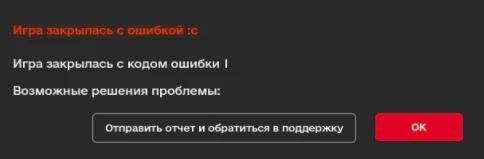
In this article we will describe in detail how to solve this problem.
Error 1, -1
Welcome, KLauncher support is with you. Sometimes users encounter error 1, -1.
If you sent a report to our VK group, then you A solution to this problem will be proposed.
1 Solution method
You need to go to the folder.minecraft or in the directory where you have minecraft installed (Next to the "Play" button there is a daddy icon (to the right of the button) you need to click on it). If there is an antivirus program, disable it while downloading versions. Next, close the launcher and delete the 2 libraries and versions folders. After that, launch the launcher and install the versions you need.
Below we will consider more detailed actions
Open our launcher and go to the folder.minecraft using the button in the form of a folder, which is located to the right of "play".

Next, we need to delete 2 folders named libraries and versions.


Then restart the launcher and install the version of Minecraft we need.

2 Solution method
You need to delete the folder completely.minecraft and reinstall the launcher
If you have important worlds, screenshots, or resource packs, then save them to another location
Recommendations for proper installation:
- Install the launcher in the recommended folder (appdata/roaming/.minecraft)
- Other launchers may affect the launch of our launcher.
- It is advisable to remove Java that you have on your computer
Solution method 3
If the methods above didn't help you, then try using another Java, we use Java JRE251 Zulu for the launcher to work correctly, but you may have some problems with it, so we can advise you to use Java JRE51
Didn't help me
Unfortunately, this happens, but do not despair! Write to our VK group, we will try to help you there