 RU
RU EN
EN ES
ES FR
FR HI
HI JA
JA KO
KO MS
MS PT
PT TR
TR







Error EXCEPTION_ACCESS_VIOLATION 0xc0000005
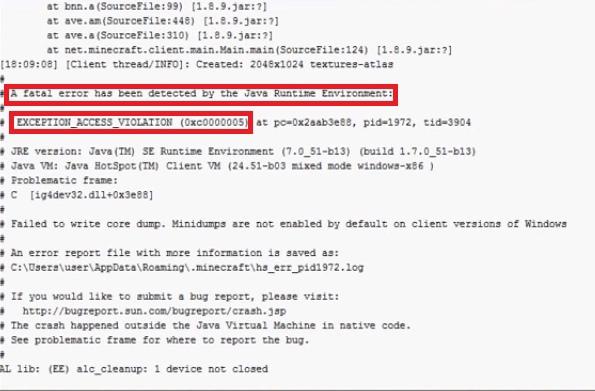
Fixing the error EXCEPTION_ACCESS_VIOLATION 0xc0000005 when starting Minecraft
Welcome, Klauncher's support is with you. Some Minecraft players may encounter the error EXCEPTION_ACCESS_VIOLATION 0xc0000005 when starting the game. In the error message, you can find information that a critical failure was detected during an attempt to launch the game by the Java runtime environment.
Accordingly, you will not be able to bypass this error and enter Minecraft until you eliminate the cause of this critical failure. In this article, we will try to help you fix the EXCEPTION_ACCESS_VIOLATION 0xc0000005 error so that you can start Minecraft and enjoy the game.
Reinstalling Java
First of all, you need to try to reinstall the Java components on your computer. It is possible that their last installation was not as successful as you thought. Reinstalling is done quite simply: go to "Programs and Components", find the Java item there, right-click on it and select "Uninstall".
Then go to the official Java website, download the installer of the software libraries, install them and reboot your computer. After these simple actions, try running Minecraft again and check for the error EXCEPTION_ACCESS_VIOLATION 0xc0000005.
Reinstalling Minecraft
If reinstalling Java components did not help resolve the error situation when starting Minecraft, then why not try reinstalling the game itself. Considering that the size of that is incredibly small, then this should not be a problem for you.
Go to "Programs and Components" again. Find the installed Minecraft in the list of installed programs. Right-click on it and select "Delete". Then re-install the game as you did the first time.
Disabling Account Control
There is a possibility that the error EXCEPTION_ACCESS_VIOLATION 0xc0000005 when running Minecraft could occur due to a conflict with Account Control in your Windows operating system. To check this probability, you need to disable Account Control, and then try running Minecraft again. To do this, do the following:
- Press the key combination Windows+S.
- Enter the query "Change Account Control settings" in the search box and select the result you found.
- A slider responsible for Account Control notifications should appear in front of you. Move it to the "Never notify" position.
- Apply the changes.
Try running Minecraft again to check for the EXCEPTION_ACCESS_VIOLATION 0xc0000005 error. If it didn't help, then let's move on.
Checking game conflicts with DEP
DEP(Data Execution Prevention or Data Execution Prevention) is the software and hardware of the system that prevents malicious code from being run on it. Minecraft files could have come into conflict with this software, as a result of which they were blocked for execution. You need to add the game files to the DEP exclusion list. To do this, do the following:
- Press the key combination Windows+S.
- Enter the query "System information" in the search box and select the result.
- Click on the item "Advanced system settings".
- Go to the "Advanced" tab.
- Go to the "Parameters" of the "Performance" section.
- Go to the "Data Execution Prevention" tab.
- Check the box next to the option "Enable DEP for all programs and services except those selected below:".
- Then click on the "Add" button.
- Add the Minecraft executive file to the DEP exceptions. If you installed the game in the default directory, then it will have to be in C:\Users\UserName\AppData\Local \.Minecraft.
- Save the changes in the work of DEP.
Once you've excluded Minecraft from DEP, try running it again. If none of the above helped you solve the EXCEPTION_ACCESS_VIOLATION 0xc0000005 error, then we still have one last method, which, according to many users on the network, will certainly fix the problem.
Changing the Options file
So, go to the folder with Minecraft, which should be in the directoryC:\Users\UserName\AppData\Local \.Minecraft. Find a file called in this folderoptions.txt . Open it and find the line fnoEnable: true.
You must change the value of this line from fnoEnable:true to fnoEnable:false. Then save the changes in this file and calmly continue playing Minecraft, because this time there should be no error EXCEPTION_ACCESS_VIOLATION 0xc0000005.
If the error remains, write to us in the group in Vkontakte!